
Buying Team
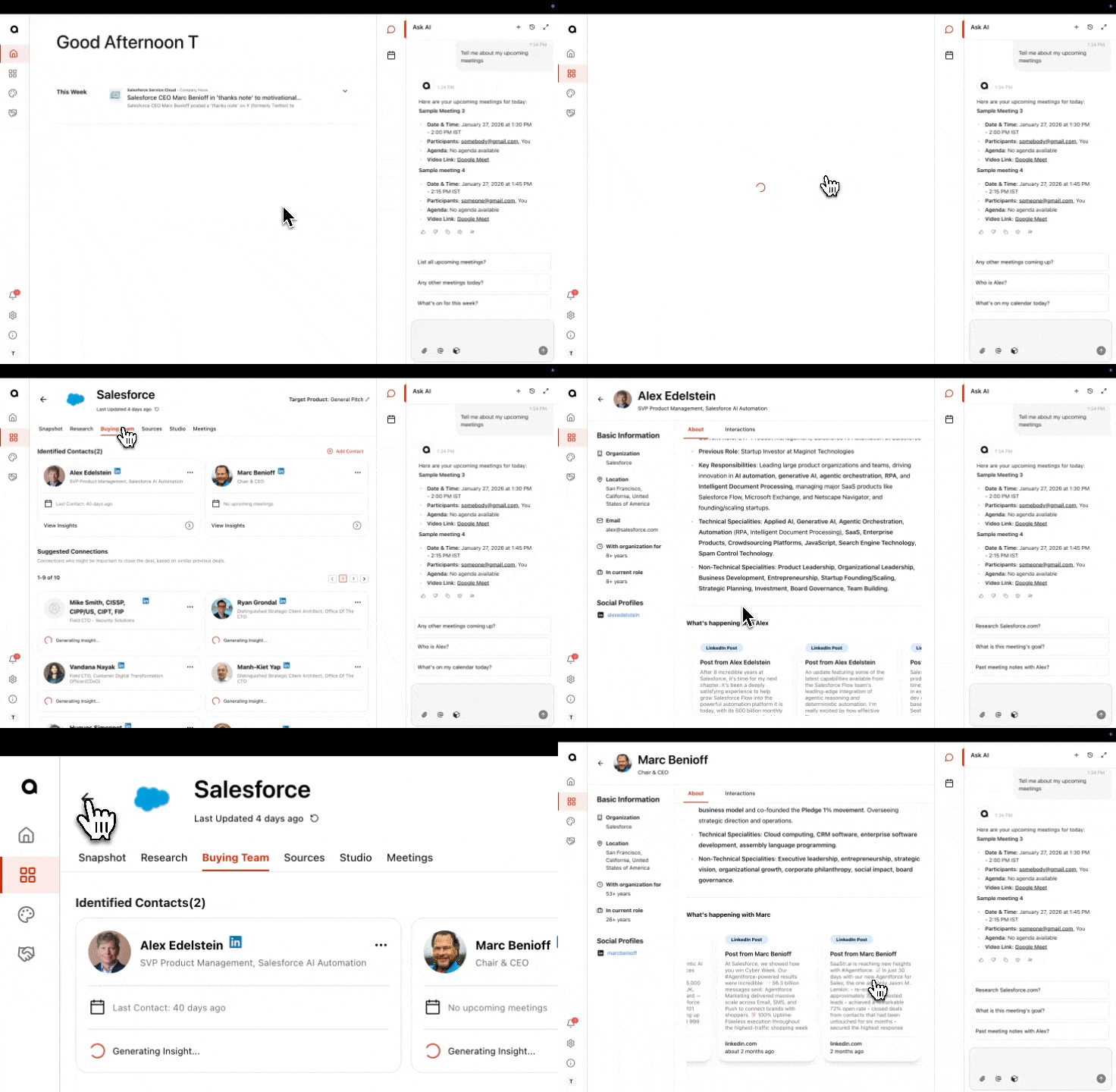
The Buying Team tab shows the stakeholders and contacts associated with an account.
To view the Buying Team:
Open the account.
Click the Buying Team tab.
What you'll see:
Identified Contacts: People AnyTeam has found on your calendar invites or that you've added manually.
Suggested Connections: Additional contacts AnyTeam recommends based on who we think could be a potential buyer
Add a Contact
Contacts are added automatically when they appear on meeting invites for that account. You can also add contacts manually.
To add a contact manually:
Open the account and go to the Buying Team tab.
Click Add Contact in the top right corner
Paste the contact's LinkedIn profile URL.
Click Add.
The contact is added and insights begin generating.
If a contact from a meeting doesn't have insights:
Find the contact in the Identified Contacts list.
You'll see an Add LinkedIn URL button next to their name.
Click the button.
Paste their LinkedIn URL in the popup.
Click Add LinkedIn URL.
AnyTeam searches for insights on that contact.
View Stakeholder Insights
To see a contact's full profile:
Find the contact in the Buying Team tab.
Click View Insights.
The contact's About page opens, showing:
TL;DR summary
Linkedin Posts
Basic info: organization, location, tenure, current role duration
Email and Phone Number (via our LeadIQ Integration)
What you have in common with the Stakeholder
Remove a Contact
Find the contact in the Buying Team tab.
Click on the contact to select them.
Click Remove.
A confirmation popup appears.
Click Remove to confirm, or close the popup to cancel.
Removing a contact does not delete any meeting history associated with them.