
Add an Account
To add a single account:
Click Add Account in the top right of your “Accounts” Page .
In the search field, enter the company name or paste the company website URL.
Select the correct company from the results.
The account is created and insights begin generating automatically.
You'll receive a notification when insights are ready.
To add multiple accounts at once:
Click Add Account.
Select Upload XLSX File .
Return to AnyTeam and upload the completed file.
Accounts are created. If any duplicates are detected, they're flagged and skipped.
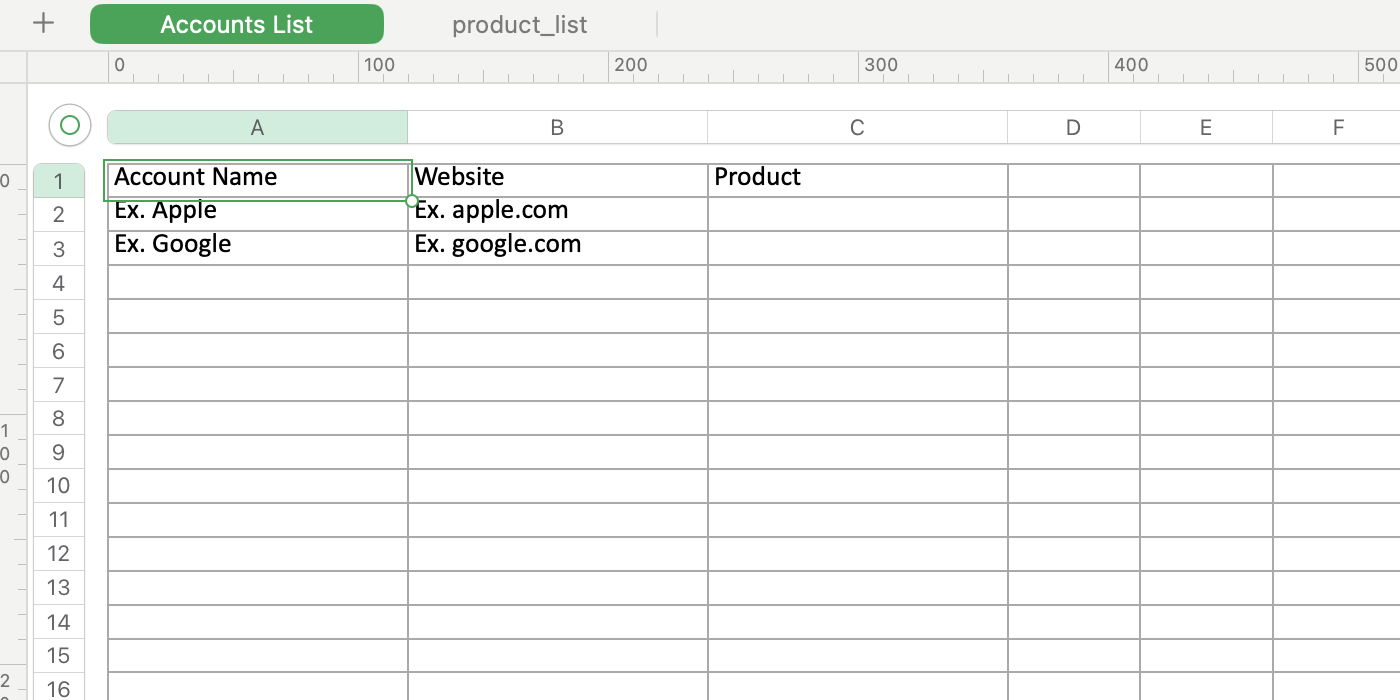
Note: the XLSX file should include the following information: “Company Name, website, Name of Product Being Sold. Use our template as a starting point
Click Download Template in the bottom right corner of the “add account” pop up to get the XLSX template file.
Open the template and fill in account details (one account per row).
Save the file and upload using the steps above.
After adding accounts:
New accounts appear in your Accounts page (find it in the left panel.)
Once insights generate, you have successfully added an active account! (please note your active account limit at the top of your account page).