
Connecting Multiple Calendars to AnyTeam
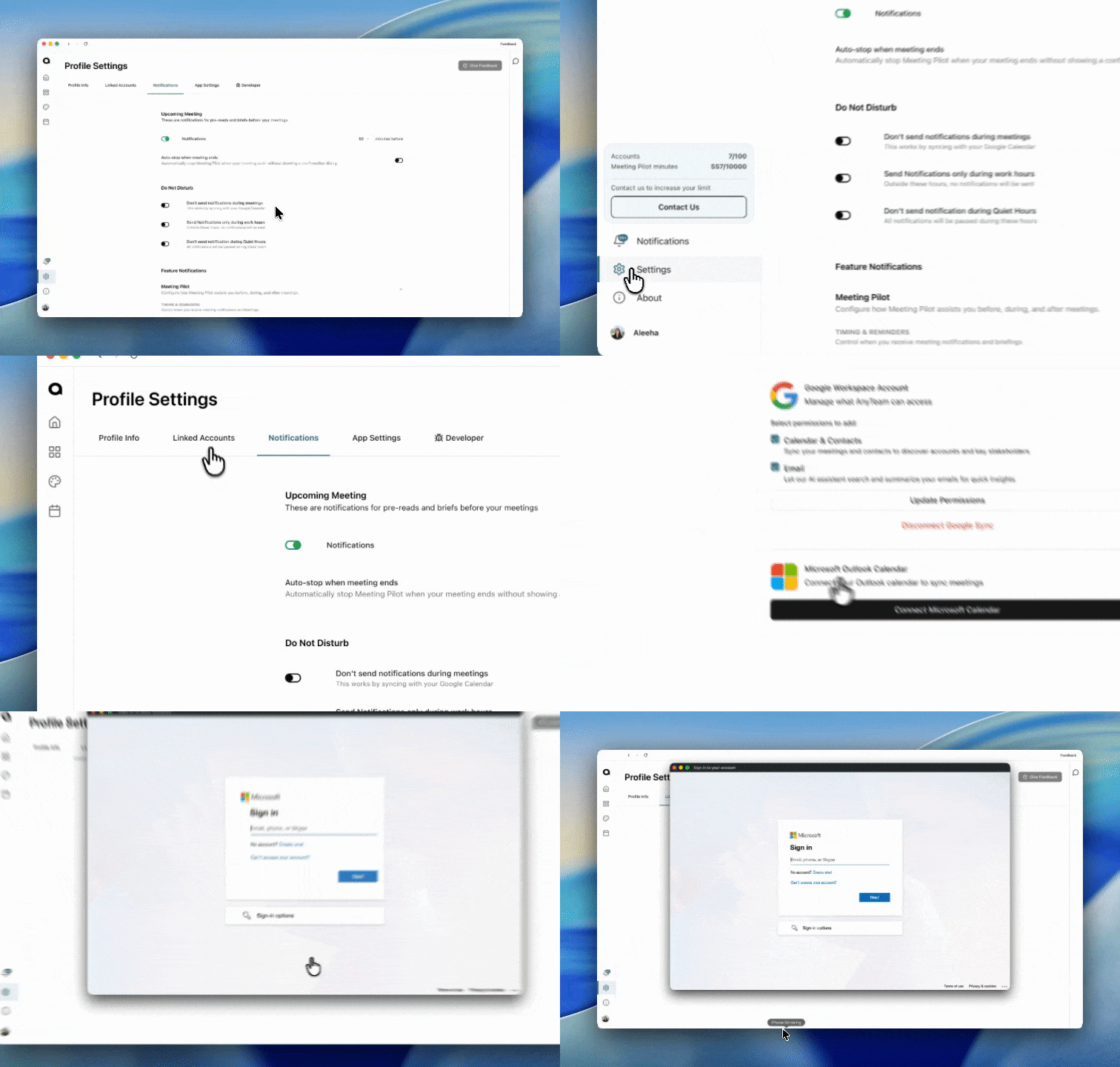
AnyTeam supports up to two calendars at once — one Gmail and one Outlook. This is useful if your work runs on Outlook but you've been using a personal Gmail to connect to AnyTeam, or if you just want both in one place.
Connecting your Gmail calendar
If you haven't connected Gmail yet, go to Settings → Linked Accounts and log in with your Google account. Grant the requested calendar and email permissions when prompted.
Connecting your Outlook calendar
Go to Settings
Open the Linked Accounts tab
Click "Connect Microsoft Calendar"
Log in with your Outlook account and grant permissions
Once connected, AnyTeam will sync both calendars automatically.
What's supported
1 Gmail calendar
1 Outlook calendar
Both can be active at the same time
Troubleshooting
If your calendars aren't syncing after connecting, try regranting permissions from the Linked Accounts tab. If the issue persists, reach out to us directly — we're happy to help get it sorted.